On this page
How to make the GTA 6 phone meme with your own clip
1. Pick what Jason is looking at
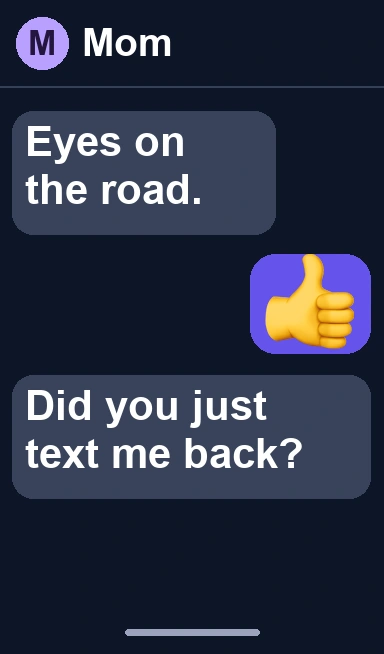
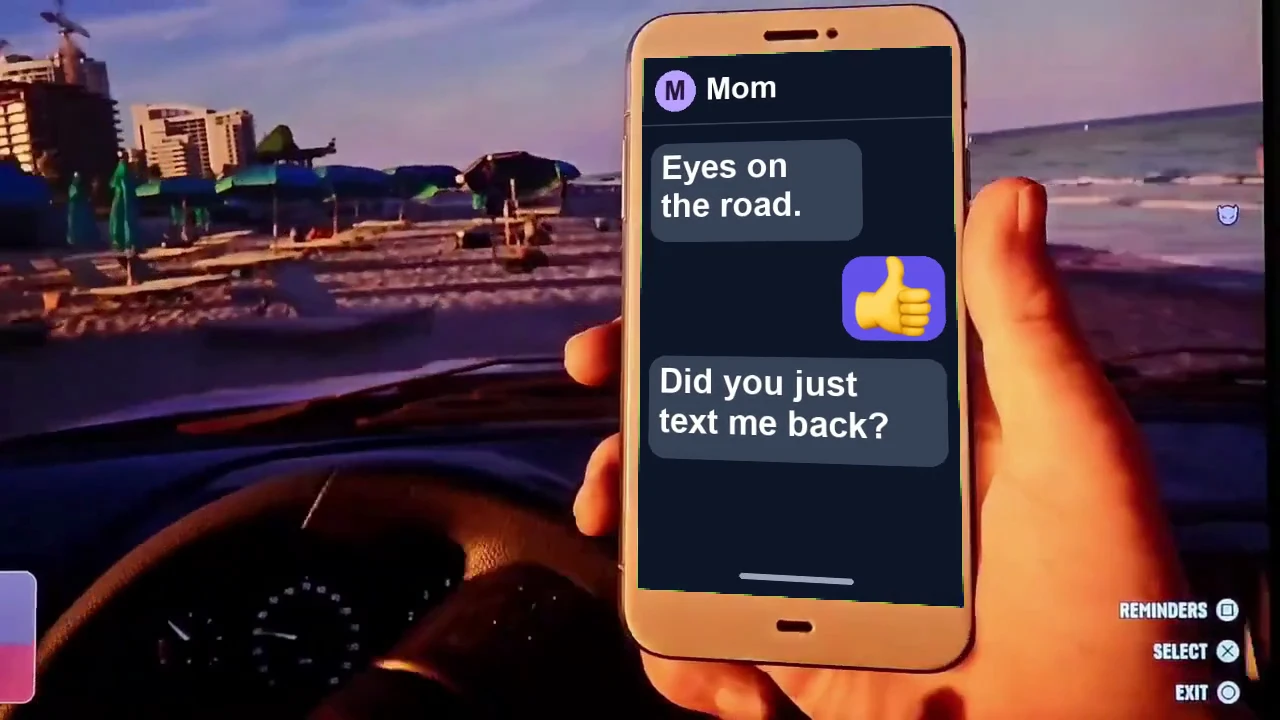
Choose Add your photo or video. For the chat example, pick a screenshot with all three messages visible. A photo or screen recording works too. If you use a longer video, put the funny part in the first six seconds. The finished meme uses the sound of the drive, so the joke should make sense with your own audio off.
2. Keep the punchline on the screen
With Fill screen selected, drag your picture inside Jason’s phone to position it. For a portrait, that might mean pulling the face into view. For Mom’s text, the line to watch is “Did you just text me back?” If it gets cut off, choose Fit entire image to keep the whole conversation visible.
Play the preview once and watch the phone as Jason moves his hand. The generator handles the green screen tracking for the entire drive. You only need to choose the framing once.
3. Save the video or one good frame
Choose Save MP4 to download the six-second clip with the game audio. To send the joke as a picture, pause when the phone is easy to read and choose Save current frame for a PNG. Both downloads are free.
What belongs on the phone screen?
Know Your Meme calls the original clip “Holding Phone While Driving Over People on the Beach”. In the edits, Jason keeps driving through the same scene. What changes is the reason he can’t take his eyes off his phone.
A good reference is @deadrosesaf’s Pokémon GO edit on X. The familiar map is enough to tell you what has Jason’s attention. For a different take, try a navigation alert that asks “Switch to walking directions?” just as he drives onto the sand.
If you use a trending clip, start with the bit your friends already quote. Try watching at the size it’ll appear in a group chat. If you have to pinch to read the punchline, crop the screenshot before adding it.
How to edit a different GTA 6 screenshot in Photopea
If you have a still from another scene, open that screenshot in Photopea. Choose File → Open & Place to add your photo on a new layer. With that layer selected, choose Edit → Transform → Distort. Drag each corner of your photo to the matching inner corner of the display, leaving the handset’s rim visible.
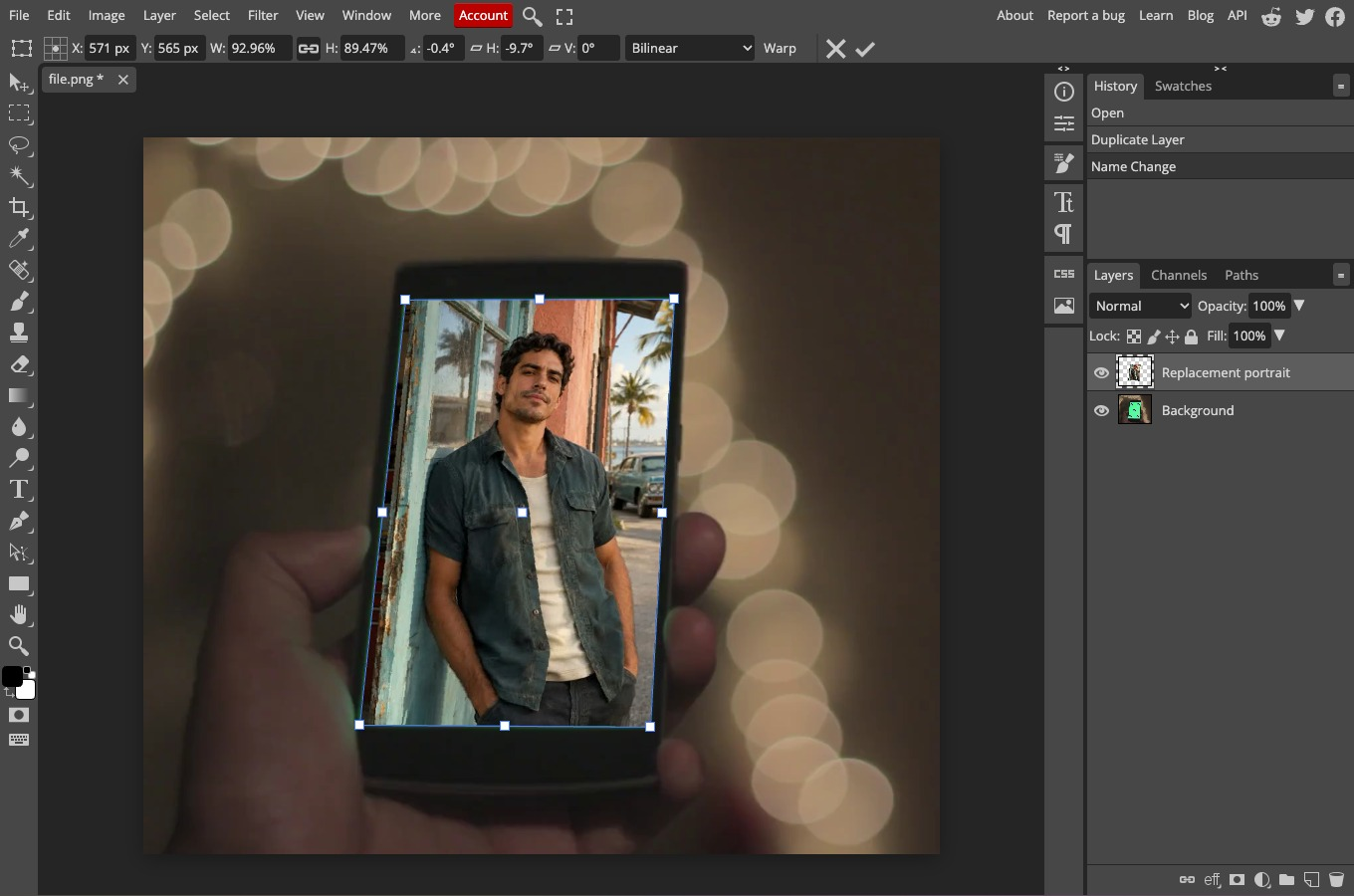
Press Enter to apply the edit, then choose File → Export as → JPG or PNG. You can also save a PSD if you want to swap in another picture later.