On this page
- Can You Get the GTA Photo Effect Inside Instagram?
- GTA 6 Photo Prompt for ChatGPT and Gemini
- Make Your GTA Photo With LeonidaPix
- Add the Finished Photo to Your Instagram Story
- Fit the portrait without cutting off your face
- GTA Filter for Instagram FAQ
- Why can't I find the GTA filter on Instagram?
- Is LeonidaPix's GTA AI Filter free?
- Can I use a photo already on my phone?
- Why does my face look different after the effect?
- Does this make a GTA loading-screen Reel?


The example shows the look this guide covers: an illustrated portrait with bold edges, saturated color, and dramatic lighting. Start with the same kind of clear, single-person photo for an easier comparison.
Can You Get the GTA Photo Effect Inside Instagram?
Instagram supports AI photo effects for Stories. Meta has also described a photo editor with effect previews and custom prompts, although availability and controls can differ between accounts and regions. See Meta's announcements about AI effects for Instagram Stories and custom prompt editing.
If you have those controls, try this:
- Open Instagram, start a new Story, and select your photo from the camera roll.
- Look for AI effects or Restyle in the editor. Depending on your interface, you may see effect previews or an editing control.
- If a custom prompt field is available, describe the illustrated look you want. Try the GTA 6 photo prompt below.
- Review the edited photo, apply the result, and finish your Story.
If your Story editor doesn’t offer custom prompts, you can edit the photo in ChatGPT or Gemini and upload the result to Instagram.
GTA 6 Photo Prompt for ChatGPT and Gemini
Upload a clear portrait to ChatGPT or Gemini with image generation enabled. Paste this prompt to frame your photo for a vertical Instagram Story.
Use my uploaded photo as the reference. Keep me recognizable by preserving my face shape, skin tone, hairstyle, and expression. Turn the portrait into an illustrated Vice City–inspired poster. Set the scene on a palm-lined street at sunset, with warm orange light, magenta neon, bold outlines, and clean comic-book shading. Keep me as the main subject, leave space above my head, and use a vertical 9:16 composition. Omit text and logos.
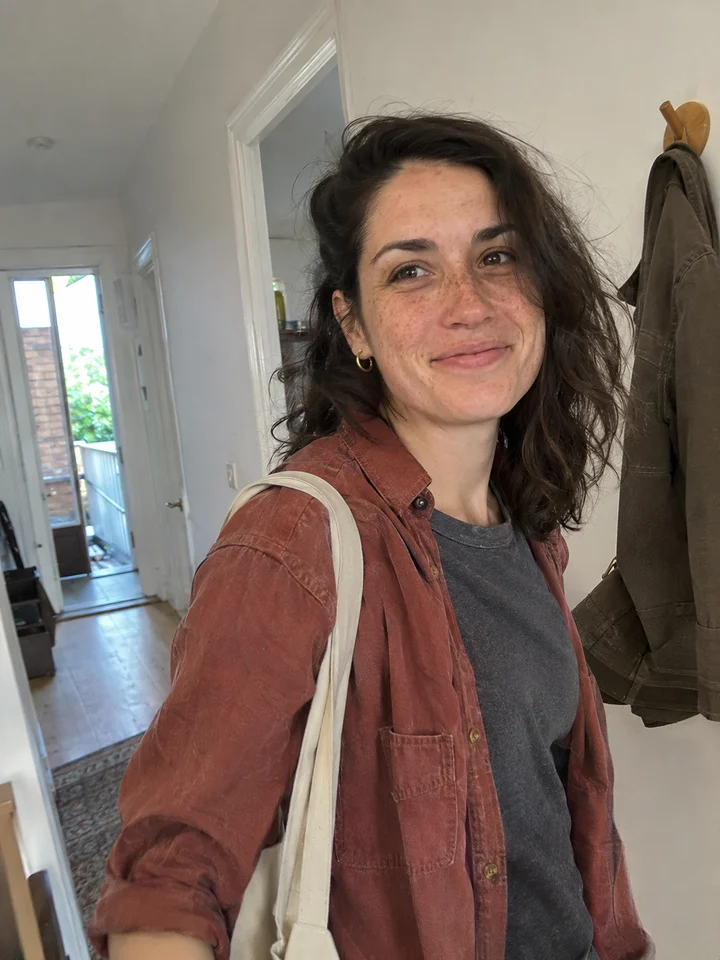 Reference portrait
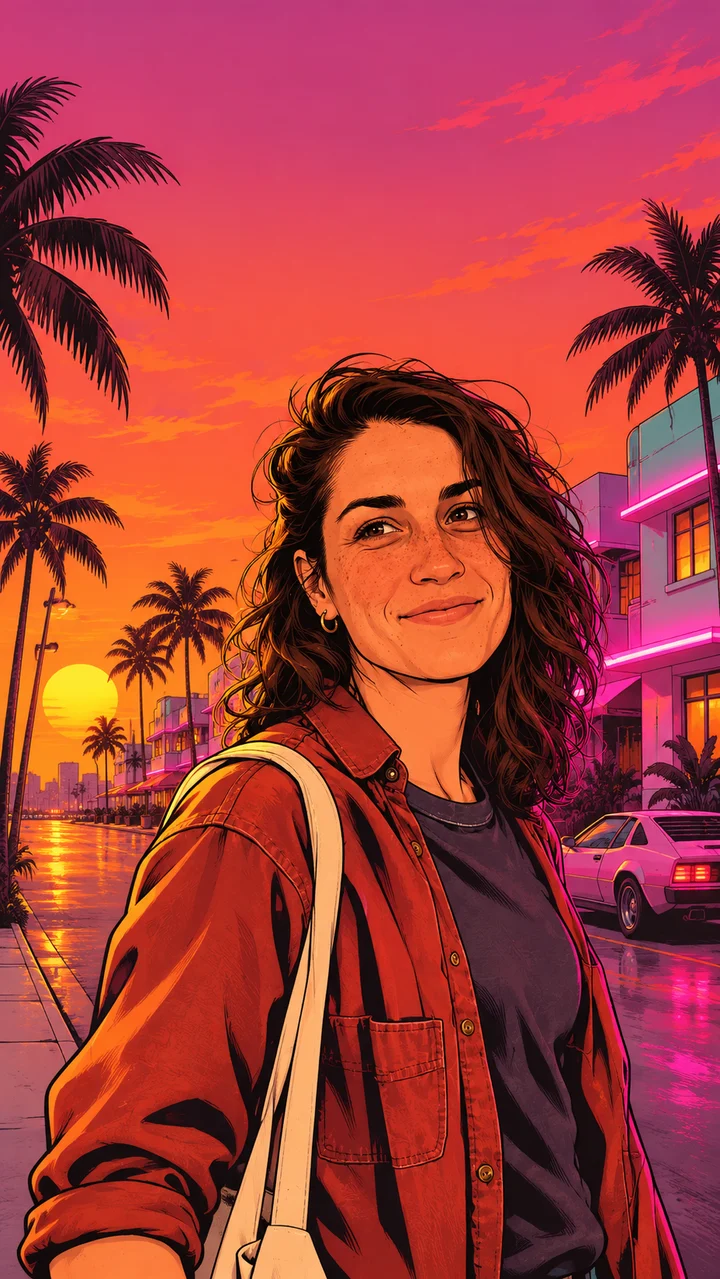 Poster from the prompt
Want the sunset look without a logo? Choose Without logo and upload your photo.
Try the GTA filter on my photoFor a different take with a classic car and the VI logo, see @PromptGemAI’s sunset poster example on PromptPlum.
Make Your GTA Photo With LeonidaPix
Open the GTA AI Filter with a selfie, a group shot or a photo of you and your pet.
- Choose the logo. Keep With logo for the game-cover lettering shown above. Choose Without logo for just the illustration.
- Upload your photo. The AI starts drawing as soon as you pick the file. A clear face and a little space around your subject give it more to work with.
- Save your image. Save the full-size image free with the LeonidaPix watermark. Unlock the same image to remove the watermark. On a phone, check Photos or Downloads for the saved file.
Add the Finished Photo to Your Instagram Story
Once the image is in your photo library, you can post it as a normal photo Story:
- Open Instagram and start a new Story.
- Open the camera roll picker and choose your saved GTA-style image.
- Resize and reposition the image so your face and the details you want to show remain visible.
- Add a caption or music if you want, then share to Your story or Close Friends.
If Instagram cannot see the file, first check that it is saved to Photos or Gallery rather than only to Downloads. Then check whether Instagram has access to that photo in your phone's permissions.
Fit the portrait without cutting off your face
You can keep the portrait inside the Story and leave background space around it. This is often easier than enlarging it until the top of your head or shoulders disappear.
If you prefer to prepare a full-screen layout in another editor, use a 9:16 canvas, such as 1080 × 1920, and fit your image inside it. Keep the image's proportions intact. Leave some breathing room near the top and bottom for Story controls and any text you add.
The first before-and-after pair in this guide uses 3:4 portraits. You can still use that shape in a Story; the composition does not have to fill every edge of the screen.
GTA Filter for Instagram FAQ
Why can't I find the GTA filter on Instagram?
People use “GTA filter” and “GTA 6 Instagram filter” for several different looks. A post might use an Instagram AI effect, artwork made in another app, or a video template. An older effect name or link may also be out of date. Compare the result with the example you want, then use a method that is available to you.
Is LeonidaPix's GTA AI Filter free?
Save the full-size image free with the LeonidaPix watermark. Unlock the same image to remove the watermark.
Can I use a photo already on my phone?
Yes. Start with a saved photo and select it through Upload photo. You do not have to take the picture inside Instagram. A clear portrait gives you more useful facial detail to work with than a heavily compressed screenshot.
Why does my face look different after the effect?
An AI photo effect redraws parts of the image, which can alter facial details, hands, jewelry, or lettering. Try a clearer photo with more even lighting. Review the finished image at a larger size before posting it.
Does this make a GTA loading-screen Reel?
This workflow creates a still image. For an animated reveal, use the original and edited pictures in a video editor, set the timing or transitions, and export a video for your Reel. You can also use a video template designed for that format, such as a GTA-style CapCut template.
Make your own portrait with the GTA AI Filter, then add it to your next Story.
More image tools from LeonidaPix
For a separate loading-screen composition, try the GTA Loading Screen Generator.